Build the First Page
Now that you are familiar with DevEco Studio, create a simple application that demonstrates page navigation.
Use the Text Component
After project synchronization finishes, navigate to entry > ets > pages in the Ohos view and open Index.ets. This file contains a Text component, as shown below:
// Index.ets
@Entry
@Component
struct Index {
  @State message: string = 'Hello World';

  build() {
    Row() {
      Column() {
        Text(this.message)
          .fontSize(50)
          .fontWeight(FontWeight.Bold)
      }
      .width('100%')
    }
    .height('100%')
  }
}
Add a Button Component
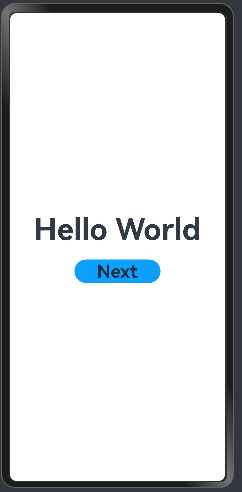
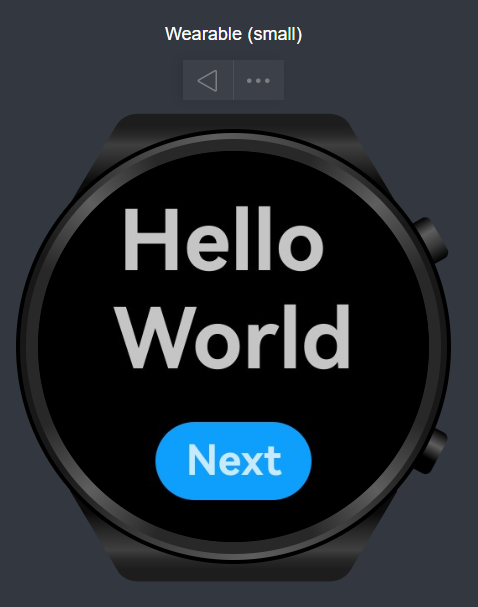
On the Index page, add a Button component to handle user clicks and navigate to another page. The following sample code in Index.ets demonstrates this implementation:
// Index.ets
@Entry
@Component
struct Index {
  @State message: string = 'Hello World';

  build() {
    Row() {
      Column() {
        Text(this.message)
          .fontSize(50)
          .fontWeight(FontWeight.Bold)
        // Add a button to respond to user clicks.
        Button() {
          Text('Next')
            .fontSize(30)
            .fontWeight(FontWeight.Bold)
        }
        .type(ButtonType.Capsule)
        .margin({
          top: 20
        })
        .backgroundColor('#0D9FFB')
        .width('40%')
        .height('5%')
      }
      .width('100%')
    }
    .height('100%')
  }
}