Best Practice
Now that you understand the basics of module development, follow this step-by-step tutorial. The example demonstrates the benefits of modular development.
Step 1: Initialize new project
Create a project and select Phone as the device type.
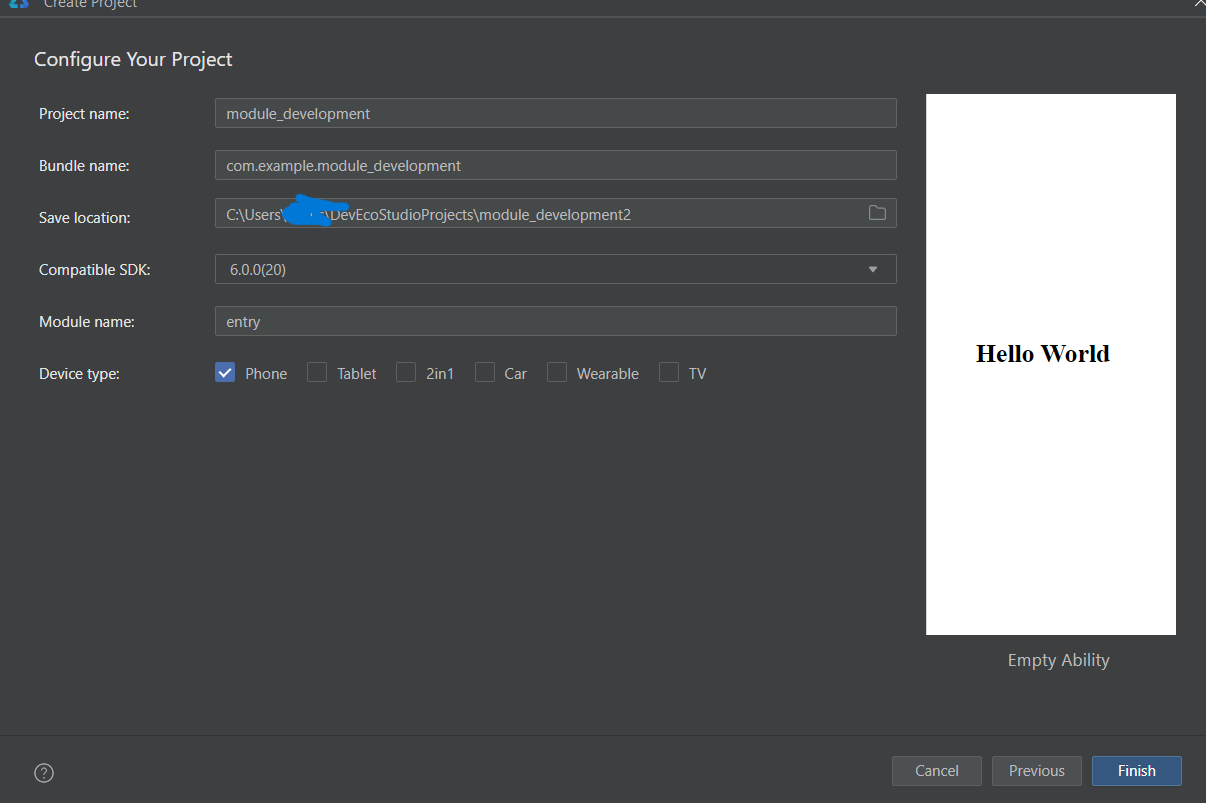
Then, right-click the project root directory and select the option to create a module.
This tutorial creates two modules:
- Select Empty Ability and create wearable application.
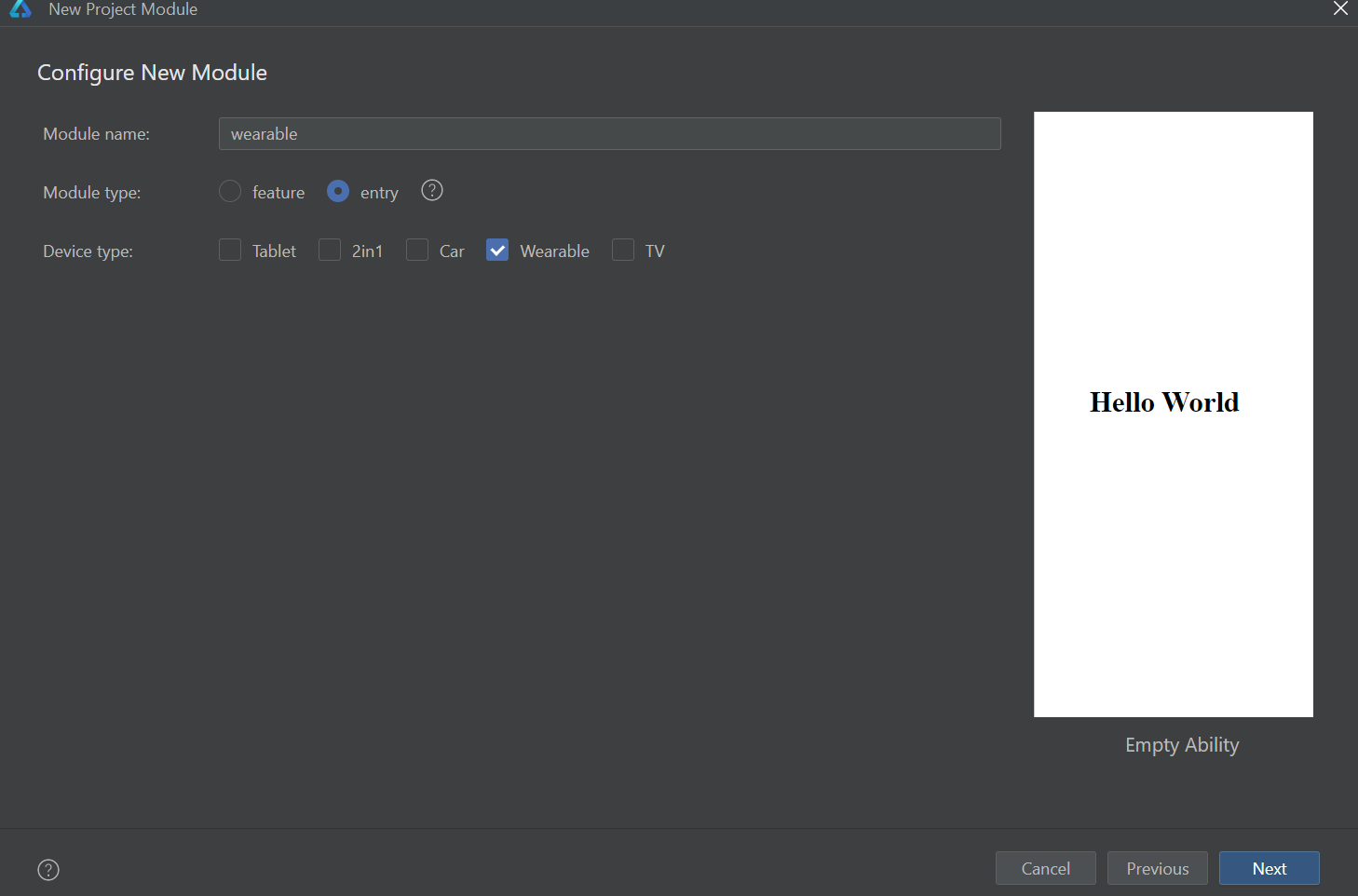
- Select
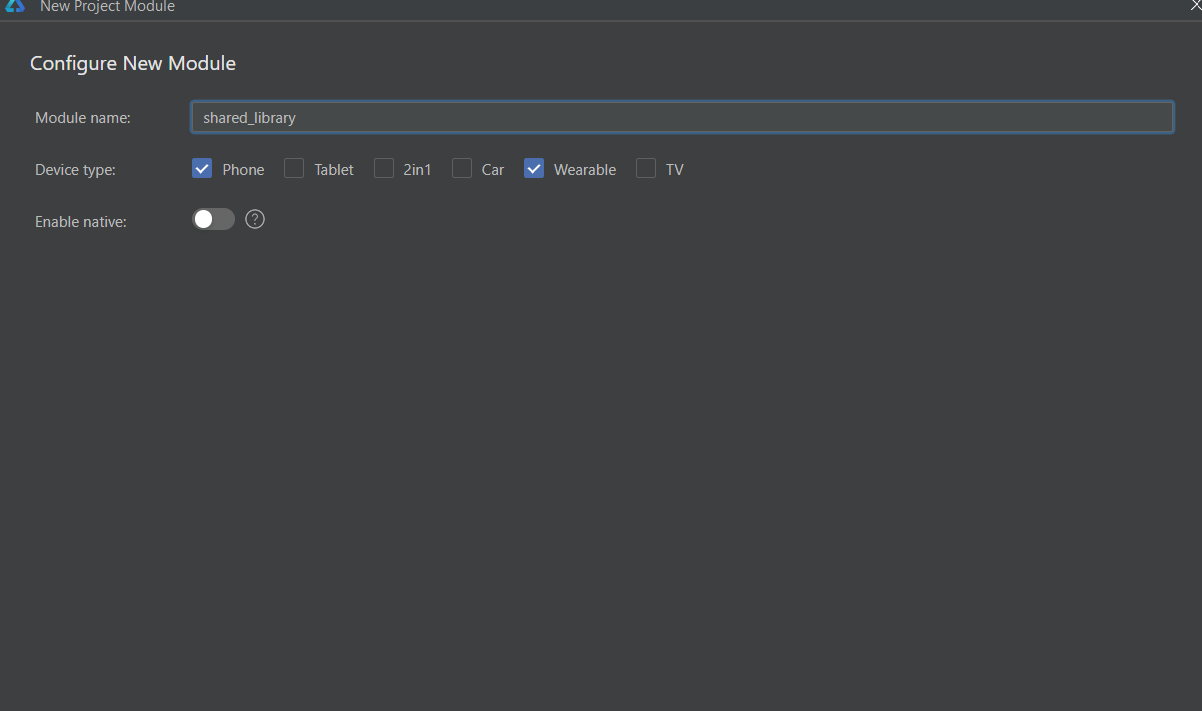
Shared Libraryand create shared_library module.
Info
In this tutorial, we use a shared module across two different device types.
When creating an application for another device, ensure the new module is set to entry as the module type and select the appropriate unique Device type in your project.
For the shared dynamic library, we select both Phone and Wearable as device types to ensure compatibility with both applications.
Step 2: Define shared resources
We define a simple Log class in shared_library module, and export Log from its Index.ets page.
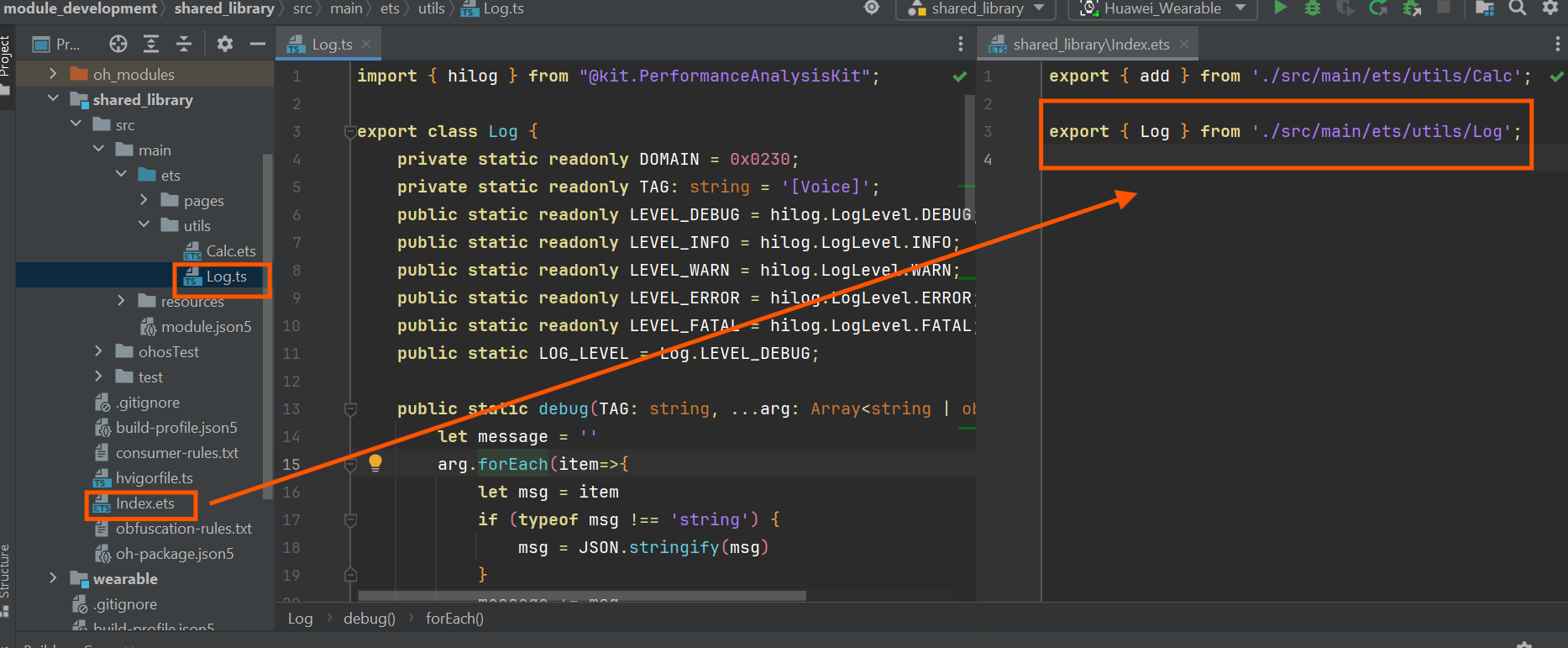
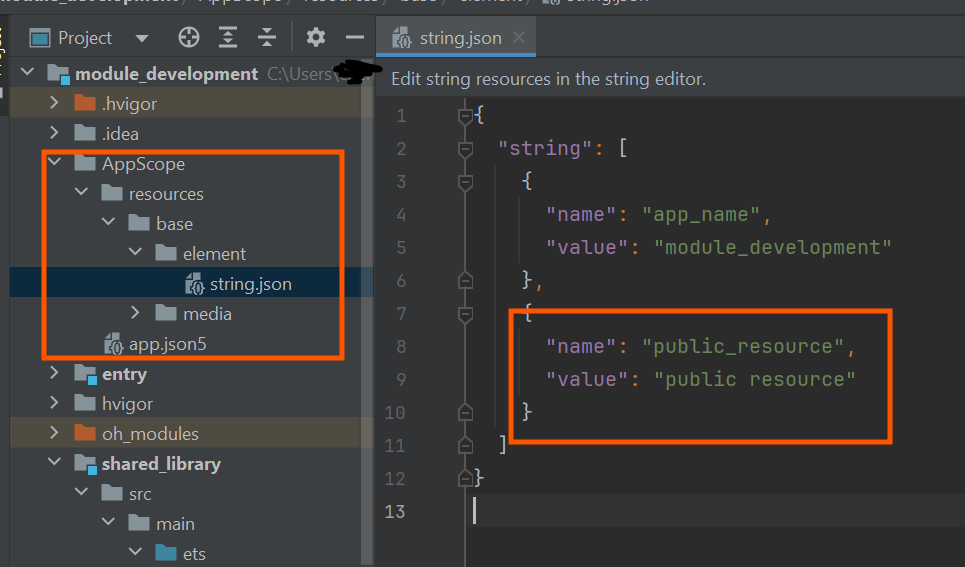
You can also use resources under AppScope.
Step 3: Add HSP dependency
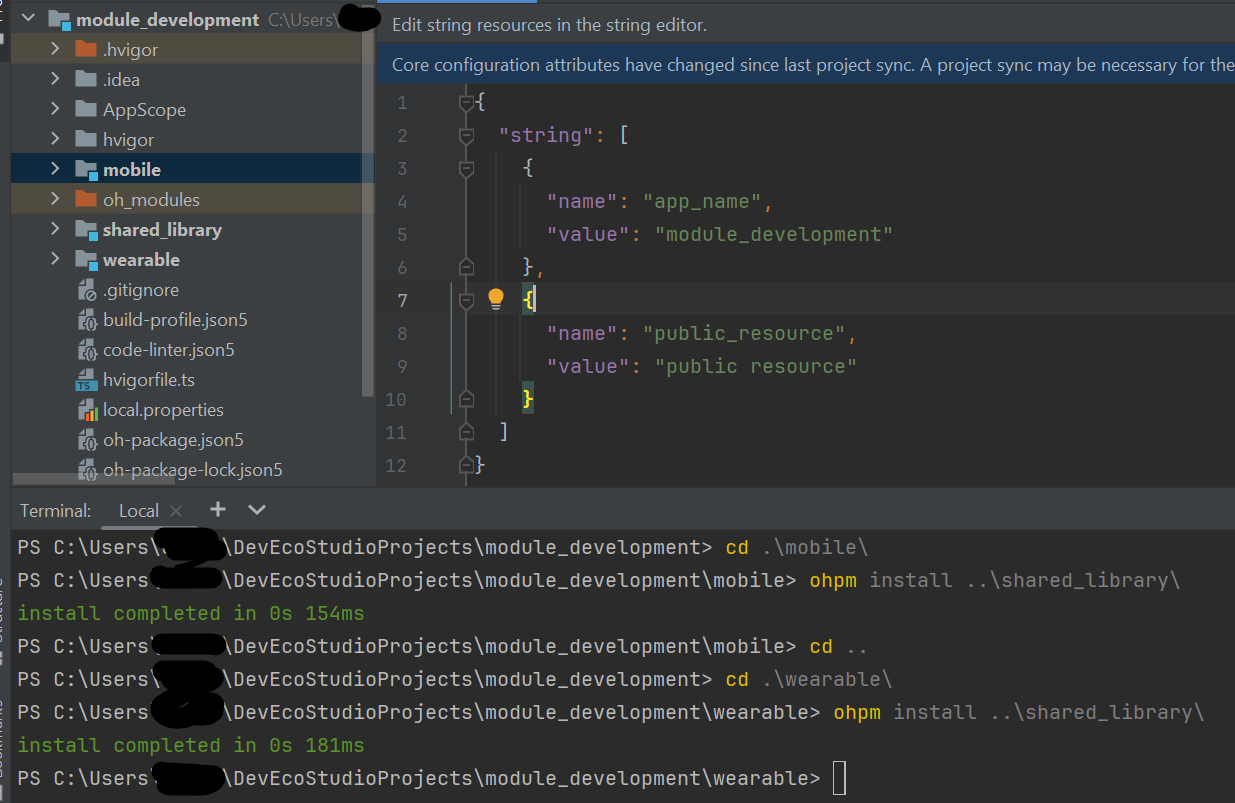
Navigate to your application entry level folder in terminal and run the following command:
This tutorial renames the entry module to mobile.
Step 4: Use shared resources
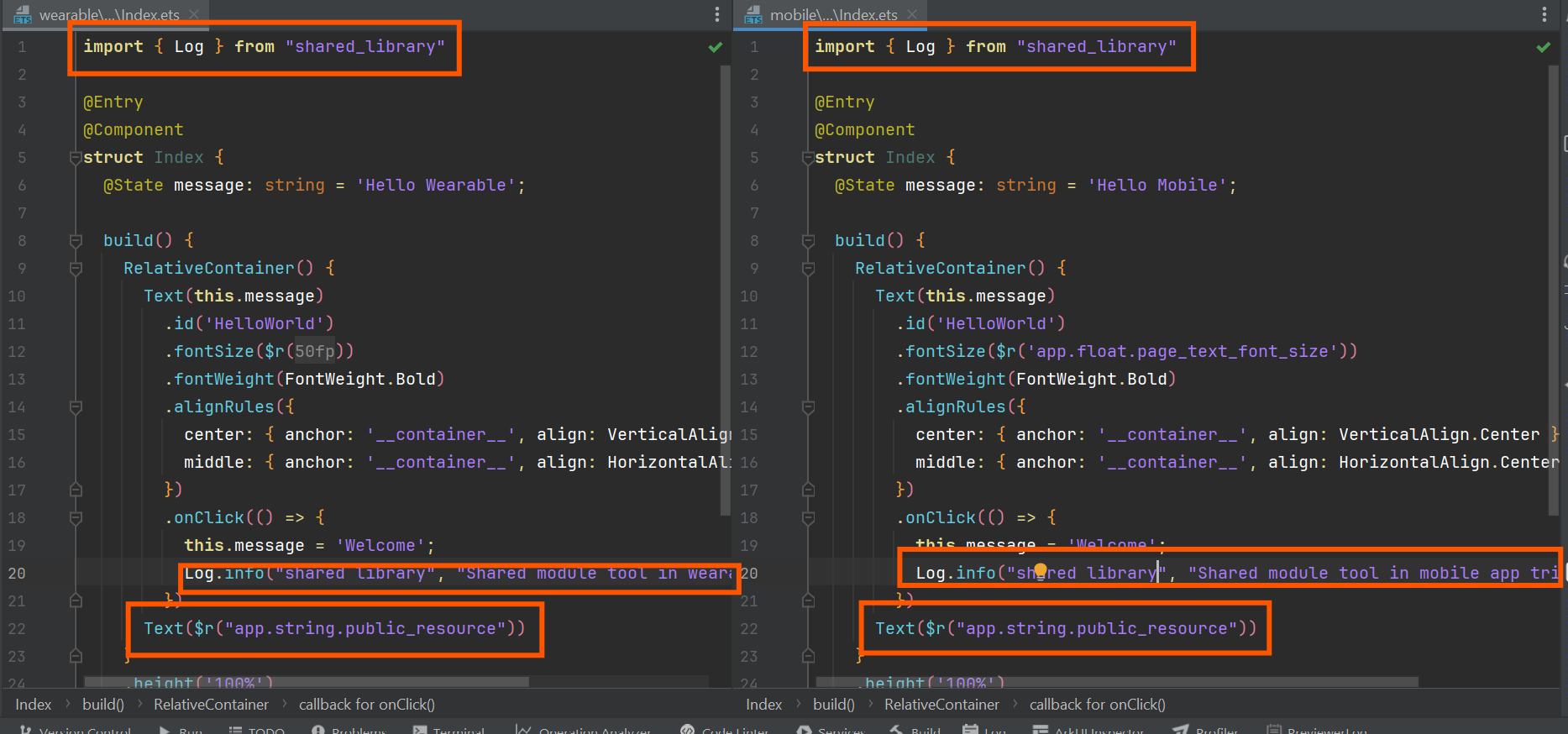
We customize the index.ets page in both mobile and wearable applications to import the Log class from the shared_library module and access the string resource public_resource from the AppScope resource folder.
Step 5: Compile and run
Select mobile in configuration and effect is as follows:
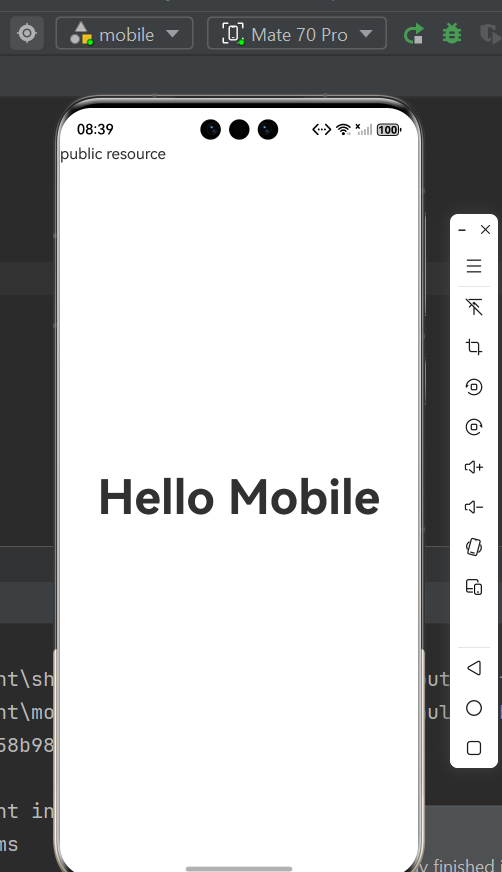
Select wearable in configuration and effect is as follows:
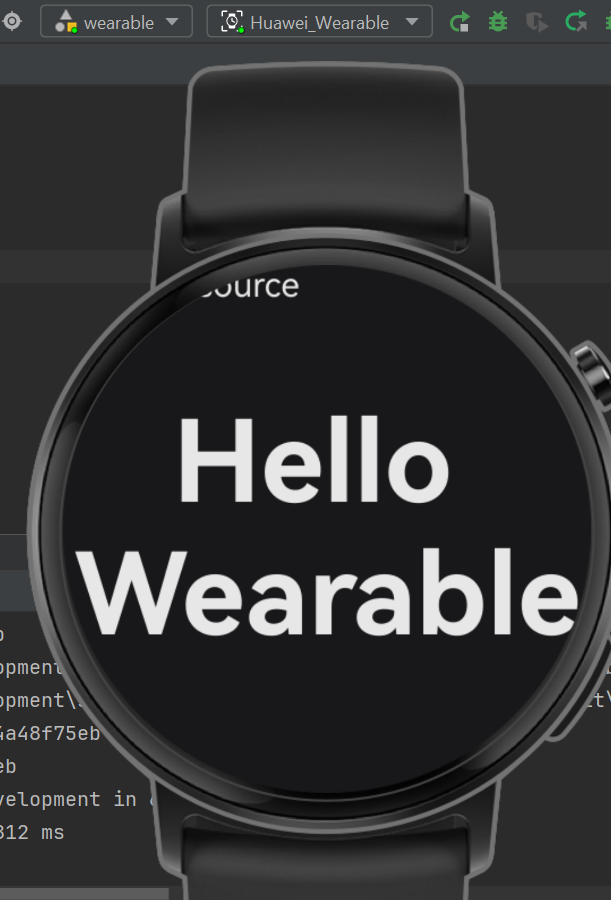
The Log utility is now accessible in both applications:


Note
Not all version of DevEco Studio have embedded device manager, in case of emulator is not working, using Previewer or real device instead.