Connecting a Real Device
Working with multiple devices
If multiple devices are connected, such as a real device over USB and an emulator, pass --device <serial> to Oniro App Builder commands that target a device.
Run oniro-app devices to list the connected devices. Each output line contains three fields:
- device serial
- connection type
- status
Oniro IDE does not currently support multiple connected devices. To work with a real device, stop the emulator first.
Connecting via USB
Connect an Oniro device through USB. When prompted, choose "Transfer files".
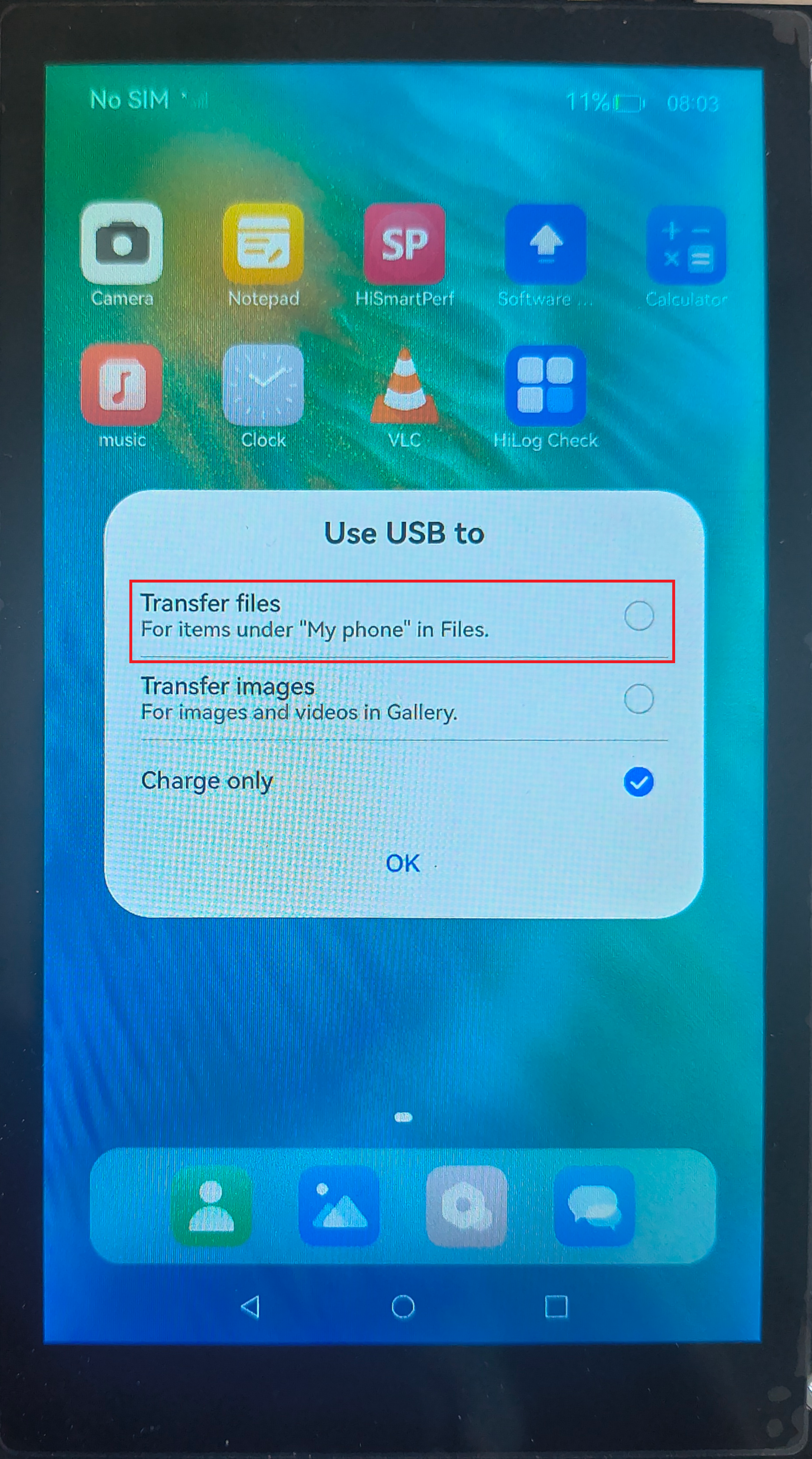
Now you'll be able to work with the connected device in the same way you worked with the emulator in the previous section.
Connecting over Wi-Fi
Warning
You can connect a device over Wi-Fi only with Oniro App Builder. This feature is not available in Oniro IDE.
Some devices — wearables in particular, which often have no USB data connection — must be connected over Wi-Fi instead. Your computer and the device must be on the same Wi-Fi network.
- On the device, enable Developer Options, then turn on HDC Debugging and Debugging via WLAN (naming can vary slightly by device).
- Note the IP address and port shown once WLAN debugging is enabled, for example
192.168.1.42:5555. - Run
oniro-app emulator connect --address <IP_ADDRESS>:<PORT>.
You're now connected and can work with the device in the same way you would work with an emulator.