Building & Running
Core Workflow
The main development workflow consists of the following steps:
- Generate a signing configuration if you have not already done so.
- Build your application.
- Connect to the emulator if it is not already connected.
- Install your application.
- Optionally, launch it remotely.
Use buttons provided by the extension:
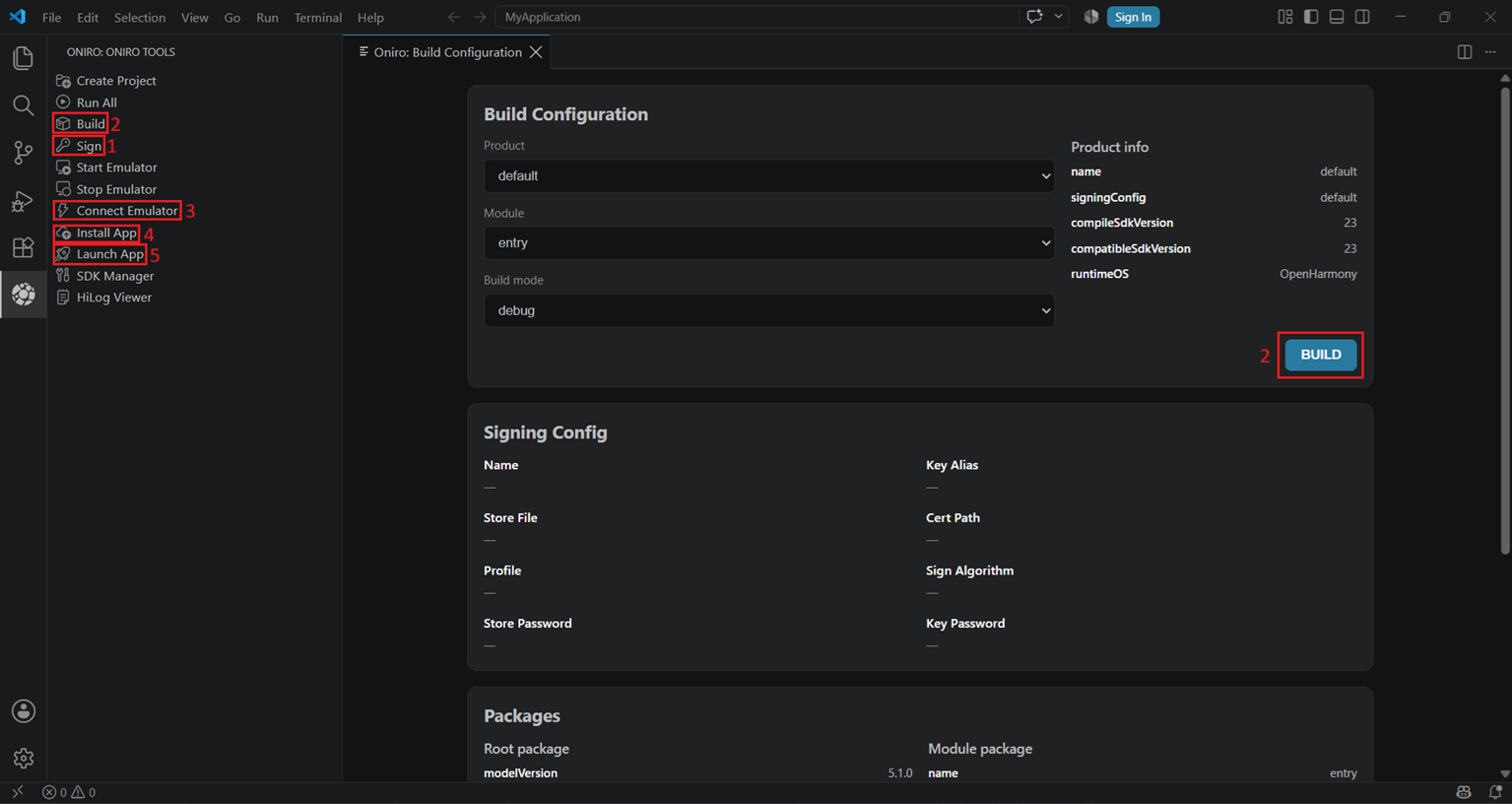
Use the following commands:
oniro-app signoniro-app buildoniro-app emulator connectoniro-app app installoniro-app app launch
HiLog
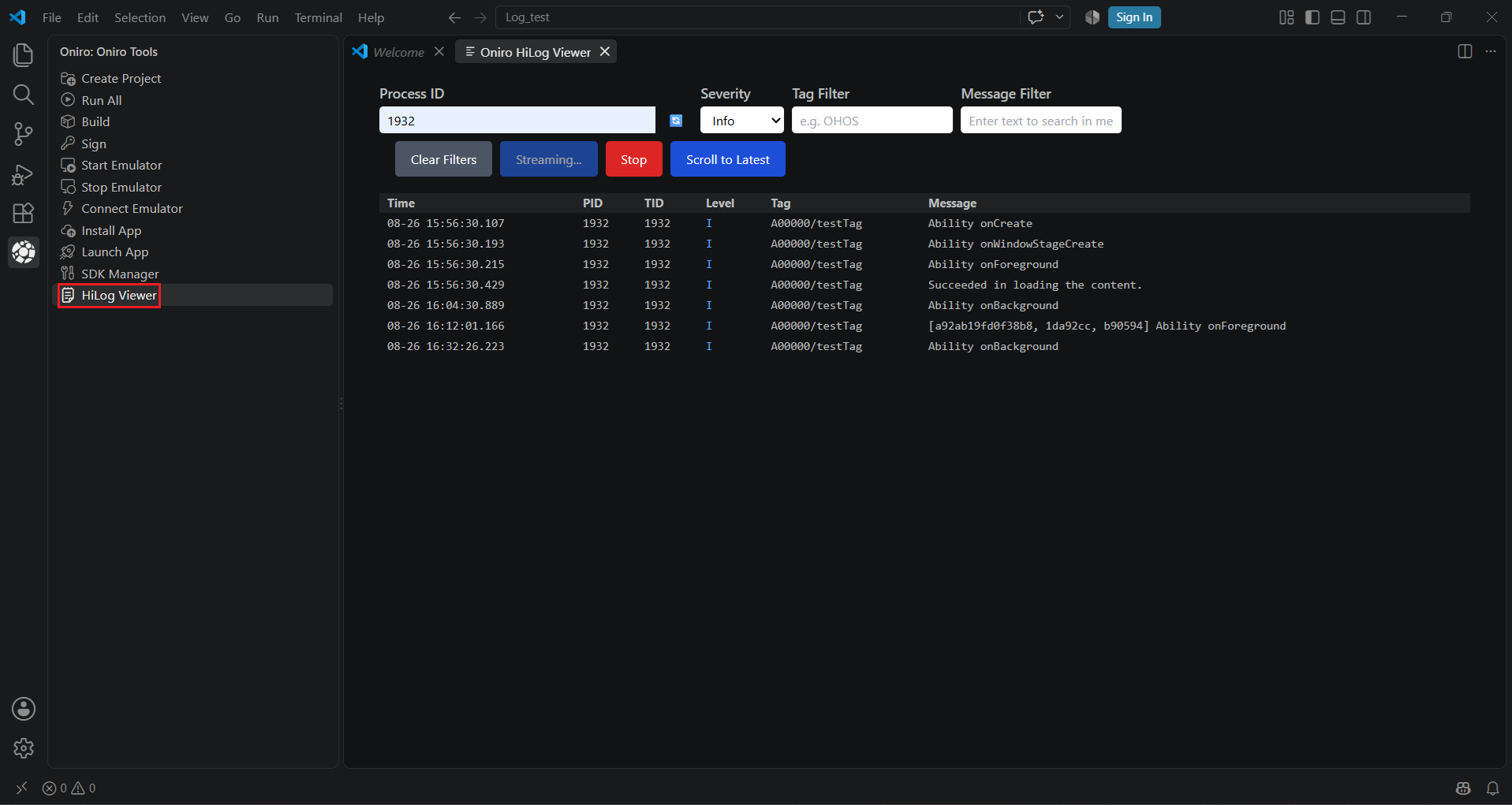
HiLog is the log system OpenHarmony apps use.
Open the HiLog viewer tab. You can filter the log by:
- Process ID
- Severity
- Tag
- Message
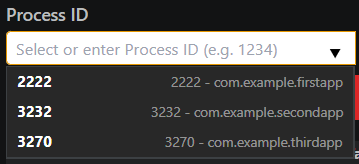
When choosing process ID, the extension will show you running apps.
oniro-app watch lets you collect HiLog lines. The available arguments are:
| Argument | Description |
|---|---|
--log <pattern> |
Only log lines matching the given regex are displayed. |
--for <ms> |
Duration to watch in milliseconds, defaults to 10000. |
--bundle <bundle> |
Filter to a specific bundle. |
--device <serial> |
Choose what device to listen to. |
--no-dedup |
Oniro App Builder automatically hides consecutive duplicate lines. Use this argument to disable this behavior. |
--json |
Emit the entries as JSON. |
Additional App Builder Commands
Oniro App Builder provides other tools for debugging and working with AI agents:
| Command | Description |
|---|---|
oniro-app screenshot |
Takes a screenshot. |
oniro-app dump |
Dumps the device state as JSON. |
oniro-app lint |
Runs the OpenHarmony code linter. |
oniro-app gesture |
Simulates touch gesture. |
oniro-app input |
Simulates touch input. |