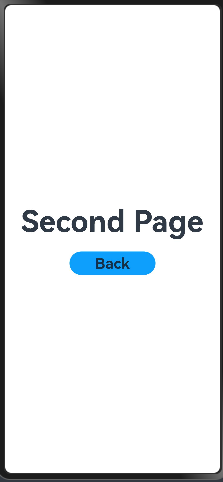
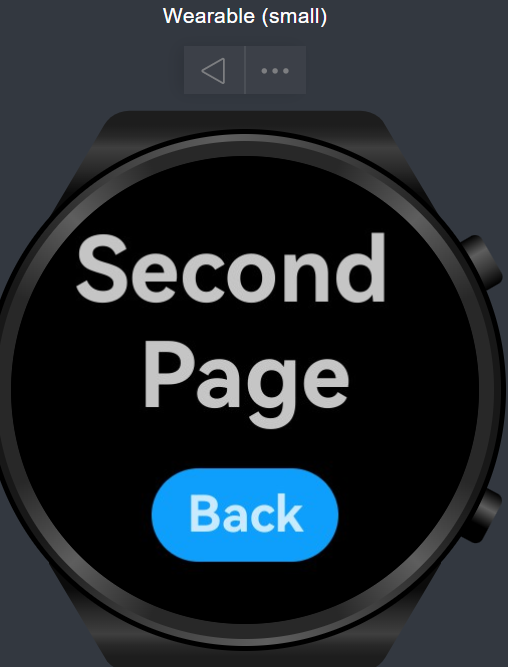
Build the Second Page
Create the Second Page
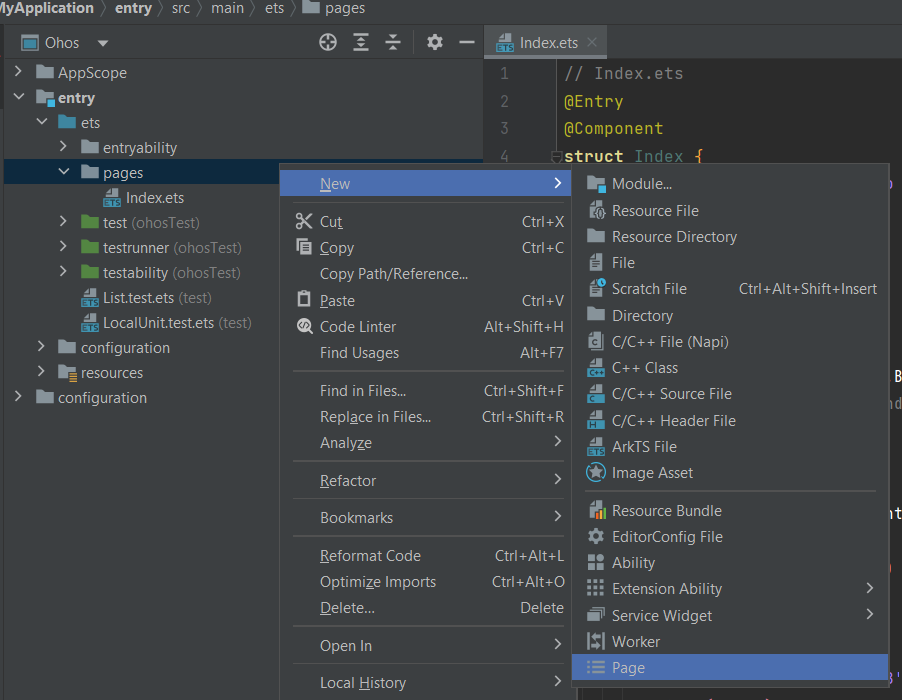
- Right-click the
entry > ets > pagesfolder, select New, and choose Page.
- Enter
SecondPageas the new page name.
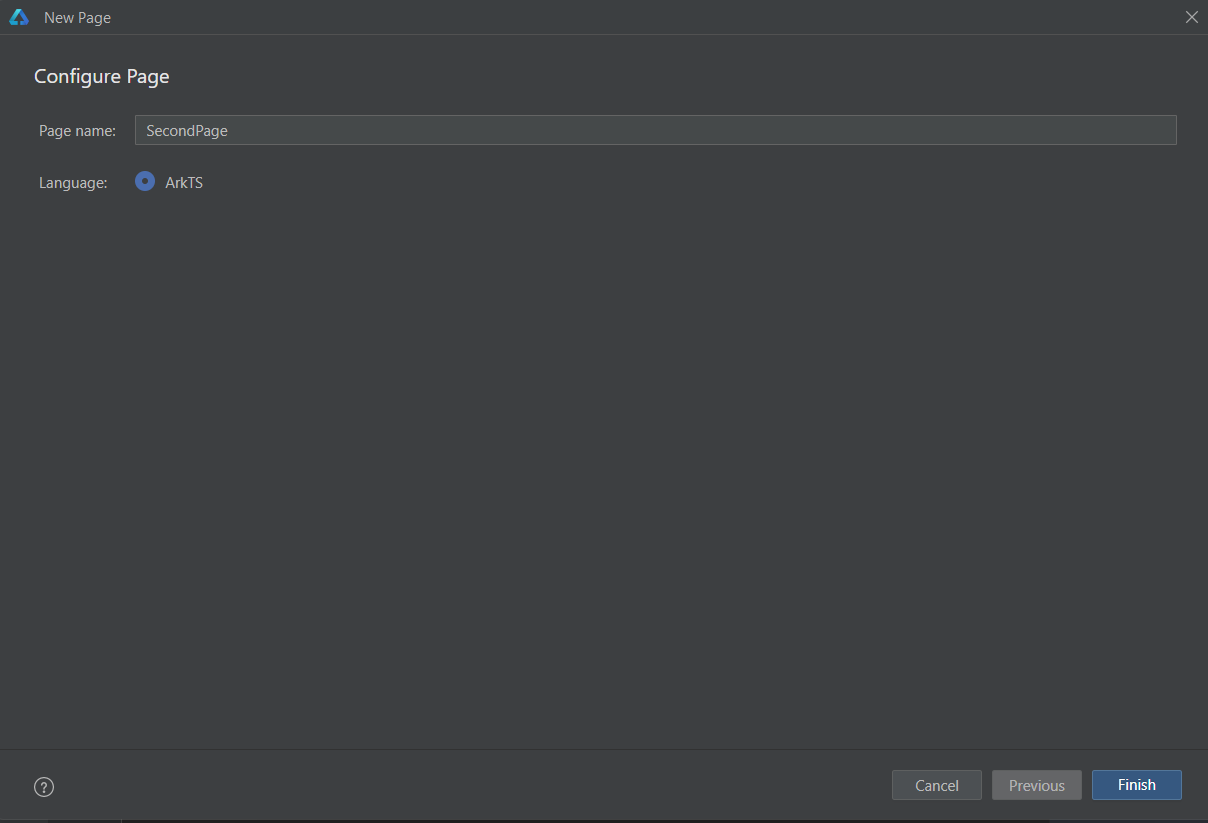
DevEco Studio creates the SecondPage page.
Navigate to entry > resources > base > profile and open main_pages.json. The page route is configured automatically:
Note
If you create the page by another method, configure its route manually in entry > resources > base > profile > main_pages.json.
Add Text and Button Components
Add Text and Button components with styled properties, using the first page as a reference. The following sample shows SecondPage.ets:
// SecondPage.ets
@Entry
@Component
struct SecondPage {
  @State message: string = 'Second Page';

  build() {
    Row() {
      Column() {
        Text(this.message)
          .fontSize(50)
          .fontWeight(FontWeight.Bold)
        Button() {
          Text('Back')
            .fontSize(25)
            .fontWeight(FontWeight.Bold)
        }
        .type(ButtonType.Capsule)
        .margin({
          top: 20
        })
        .backgroundColor('#0D9FFB')
        .width('40%')
        .height('5%')
      }
      .width('100%')
    }
    .height('100%')
  }
}