Previewer
The Previewer renders ArkUI pages without an emulator or physical device, providing rapid feedback while you build the UI.
Opening the Previewer
Open any page under entry/src/main/ets/pages/ that contains an @Entry @Component struct declaration. The Previewer panel should appear automatically, usually docked to the right of the editor. If it does not:
- Click inside the
.etsfile so it has focus. - Look for the Previewer tab along the tool window bar, or use View → Tool Windows → Previewer.
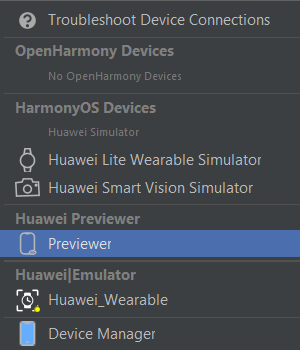
You can also select Previewer directly from the run-target dropdown on the toolbar, listed under Huawei Previewer alongside the emulator and simulator targets.
Note
The first preview of a session compiles the module, so it can take noticeably longer than subsequent updates. Later edits generally re-render in a second or two.
Screen Rotation
Switch the Previewer between portrait and landscape orientations with the Orientation button.
Live Updates
With the Previewer open, most changes to the page's build() method are reflected as soon as you save (or immediately, if Auto-save is enabled). This works for:
- Layout and styling changes (padding, colors, alignment).
- Adding/removing components.
- Changes to
@Stateinitial values.
It does not reliably reflect:
- Behavior driven by native code or platform APIs unavailable in the preview sandbox.
- Runtime logic that depends on a real network call, file system, or sensor.
- Some animations and gesture-driven interactions — verify those on an emulator or device.
Device Switching
Switch between individual device profiles to see how the application appears on a specific device, without opening the full multi-device comparison view (see Multi-Device Preview).
Multi-Device Preview
Click the device selector above the Previewer canvas to render the same page across several device profiles at once, such as phone, tablet, foldable, and wearable. This helps you identify layout problems on smaller or larger screens before using an emulator.
Note
Keep at least one small-screen and one large-screen profile enabled for any page with a complex layout. Most responsive-layout problems appear immediately in this comparison view.
Interactive Preview
By default, the Previewer is a static snapshot of the page's initial render. Switching to Interactive Preview mode (button above the canvas) lets you click, tap, and scroll inside the rendered page as if it were running on a device — useful for checking simple state changes (toggles, tab switches, list scrolling) without a full deploy.
Code Inspection
The Inspector provides bidirectional interaction between the code editor, the UI preview, and the component tree — selecting a component in any one of the three highlights the corresponding element in the other two.
Previewer Settings
Under Settings → Languages & Frameworks → ArkUI Previewer (path may vary slightly by version) you can adjust:
- Which device profiles are shown by default.
- Whether the Previewer refreshes automatically or only on manual trigger.
- Rendering scale, useful on high-DPI displays where the default preview looks too large or small.
When to Stop Trusting the Previewer
The Previewer is a productivity tool, not a substitute for testing on a real target. Always validate on an emulator or device (see Emulator) before considering a feature done, especially anything touching permissions, sensors, background tasks, or performance. See Previewer vs. Emulator for a fuller comparison of what each one can and can't tell you.