Version Control
DevEco Studio includes the same built-in Git integration found across JetBrains IDEs, so you rarely need to leave the editor for everyday version control work.
Enabling VCS for a Project
If a project wasn't cloned from Git, enable it via VCS → Enable Version Control Integration and choose Git. DevEco Studio then treats the project root as a Git repository and starts tracking file status.
The Commit Tool Window
Open it with Alt+9 or View → Tool Windows → Commit. It shows:
- Changed files, grouped by changelist (the default changelist is fine for most workflows).
- A diff preview for the selected file.
- A commit message box, plus Commit and Commit and Push buttons.
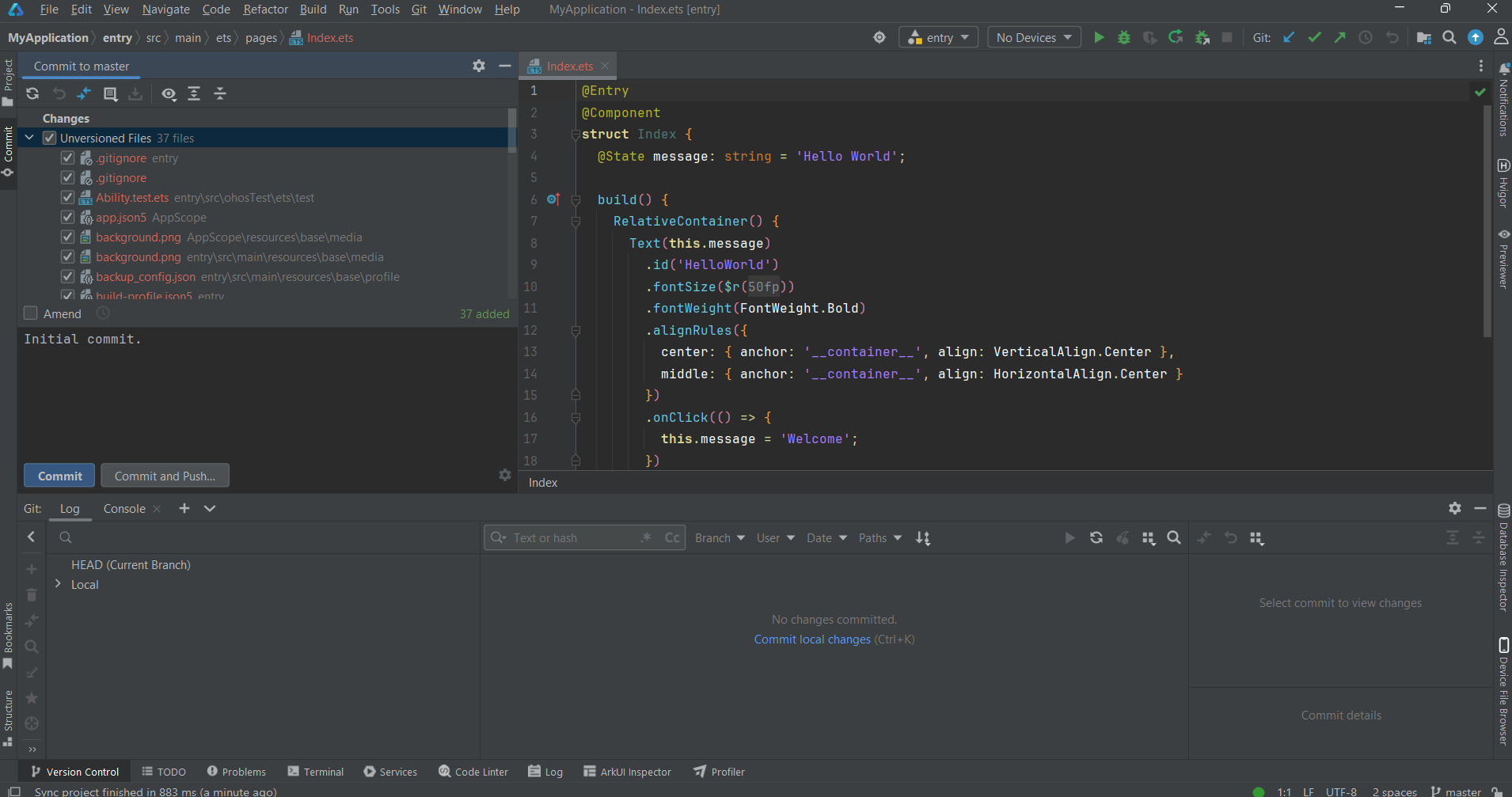
Note
Review each changed file in the Commit window before committing. This is equivalent to reviewing git diff before git add, but the diff is displayed in the editor.
Branch Management
The branch indicator in the lower-right status bar opens a menu for checking out, creating, renaming, or merging branches without a terminal. After you fetch, it also shows incoming and outgoing commit counts.

Note
Update Project (Ctrl+T) fetches and merges or rebases according to your configured settings. To inspect remote changes without modifying the working tree, use Git → Fetch instead.
Resolving Conflicts
When a merge/rebase produces a conflict, DevEco Studio opens a three-pane merge tool: your version, the result, and the incoming version, with per-block Accept Yours/Theirs actions plus manual editing of the result pane. Resolve each conflicting file this way, then continue the merge/rebase from the VCS menu.
.gitignore
Several folders under a DevEco Studio project are either machine-local IDE state or fully regenerable build output, and should not be committed:
# Build output
build/
.hvigor/
.cxx/
.test/

# Previewer cache
.preview/

# Dependency cache (regenerated from oh-package.json5 / package.json)
oh_modules/
node_modules/

# IDE metadata
.idea/
*.iml

# Local, machine-specific config
local.properties

# Signing material — never commit real keystores or passwords
*.p12
*.jks
*.cer
*.p7b
Check history for secrets before pushing publicly
If a keystore or credentials file was committed before it was added to .gitignore, the ignore rule does not remove it from history. Purge it from history, for example with git filter-repo, and rotate the exposed credentials. Treat committed credentials as compromised.